
Invoice check
Check every supplier invoice before you pay it.
Stats checks the sums and the VAT, flags possible duplicates and keeps the file with the cost it belongs to. Your cost controller sees what to look at first.
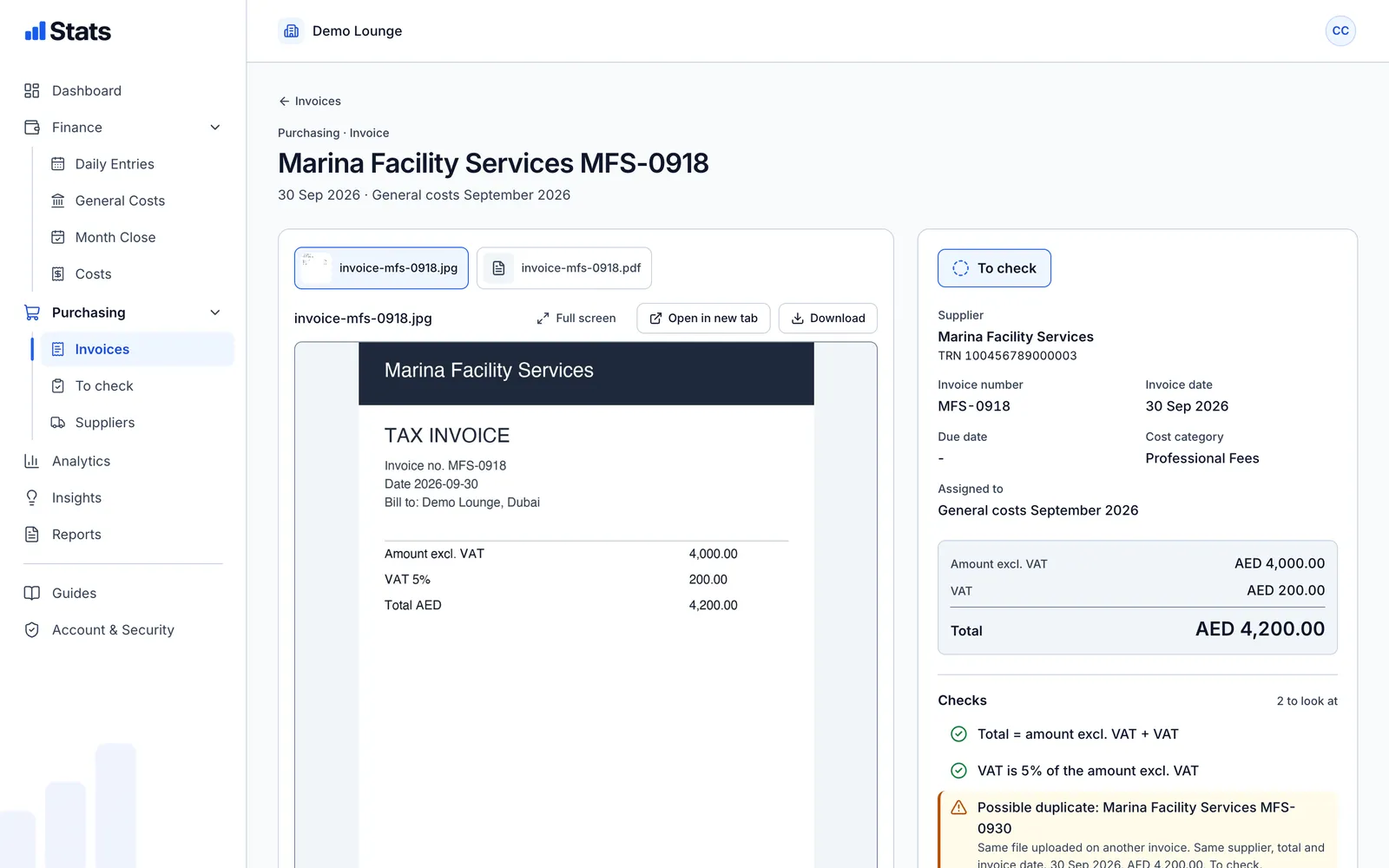
Demo venue with sample data.
Sums and VAT checked
Total equals amount excluding VAT plus VAT, and the VAT matches 5% of the amount.
Duplicates flagged
Same file, or the same supplier, total and date on another invoice? You see it before you pay twice.
Locked at month close
Once a month is closed, its invoices can no longer change. Checked invoices are frozen sooner.
Review panel
The invoice and the checks, side by side.
Open an invoice to see the file next to what was entered. Zoom in, open it full screen or download it.
- Images and PDFs shown in the app
- Checks with a clear status
- The full review history
On the phone
Snap it before it gets lost.
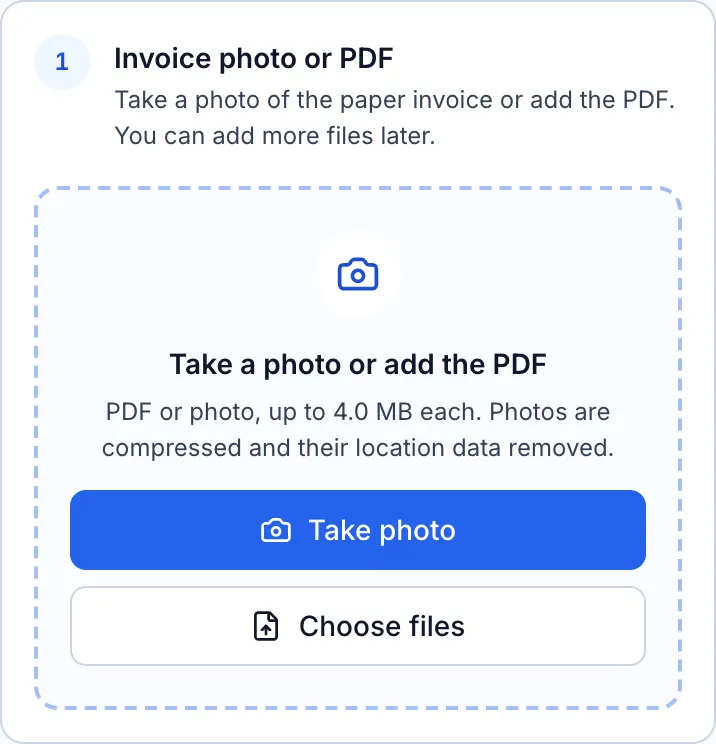
Paper invoices go missing between the delivery and the office. Take the photo when the goods arrive.
- Camera straight from the browser
- Up to 4 MB per file
- Location data removed from photos
Step by step
From paper to checked, in five steps.
- 1
Photo or PDF
The purchaser photographs the invoice or adds the PDF, on a phone or a computer.
- 2
Automatic checks
Stats checks the total and the VAT and looks for possible duplicates.
- 3
Check, query or reject
The cost controller opens the oldest first. A question goes back to the purchaser with a comment.
- 4
Link to the cost
The invoice is linked to the cost line of the night or to the month's general costs.
- 5
Month close
The month close lists invoices still to check. Closing the month locks them.